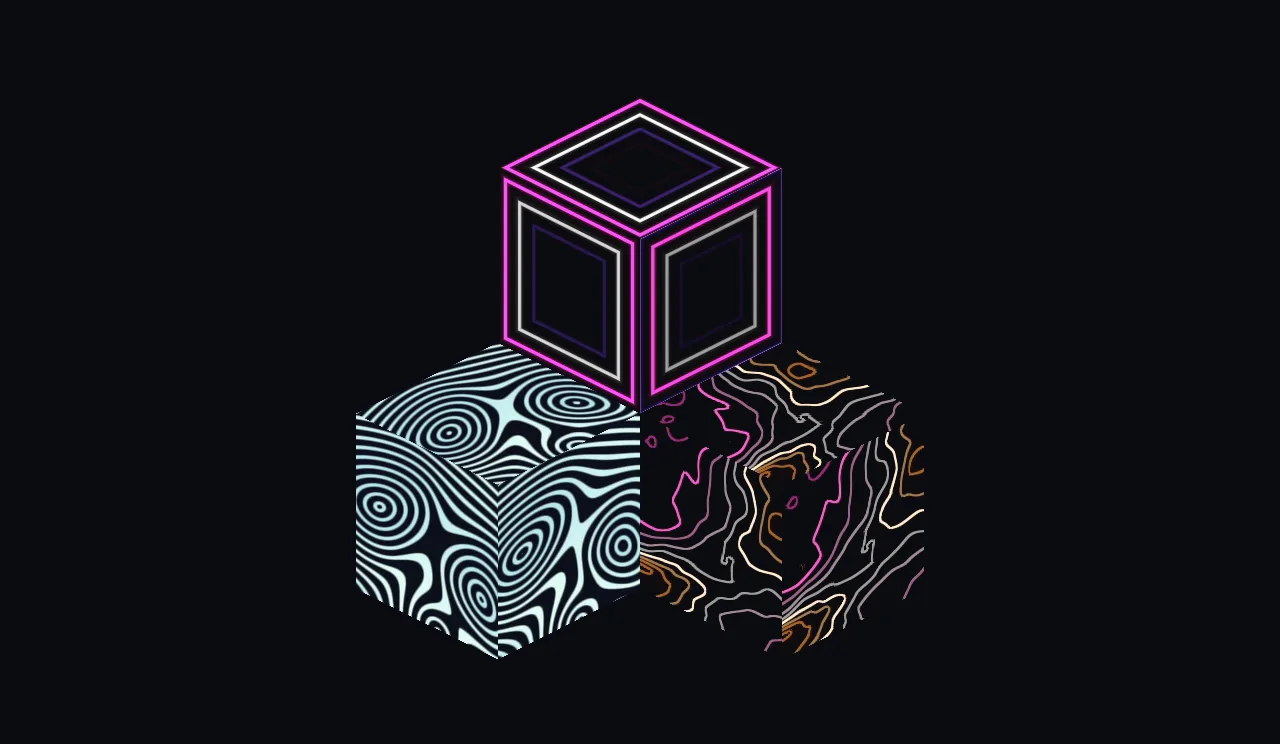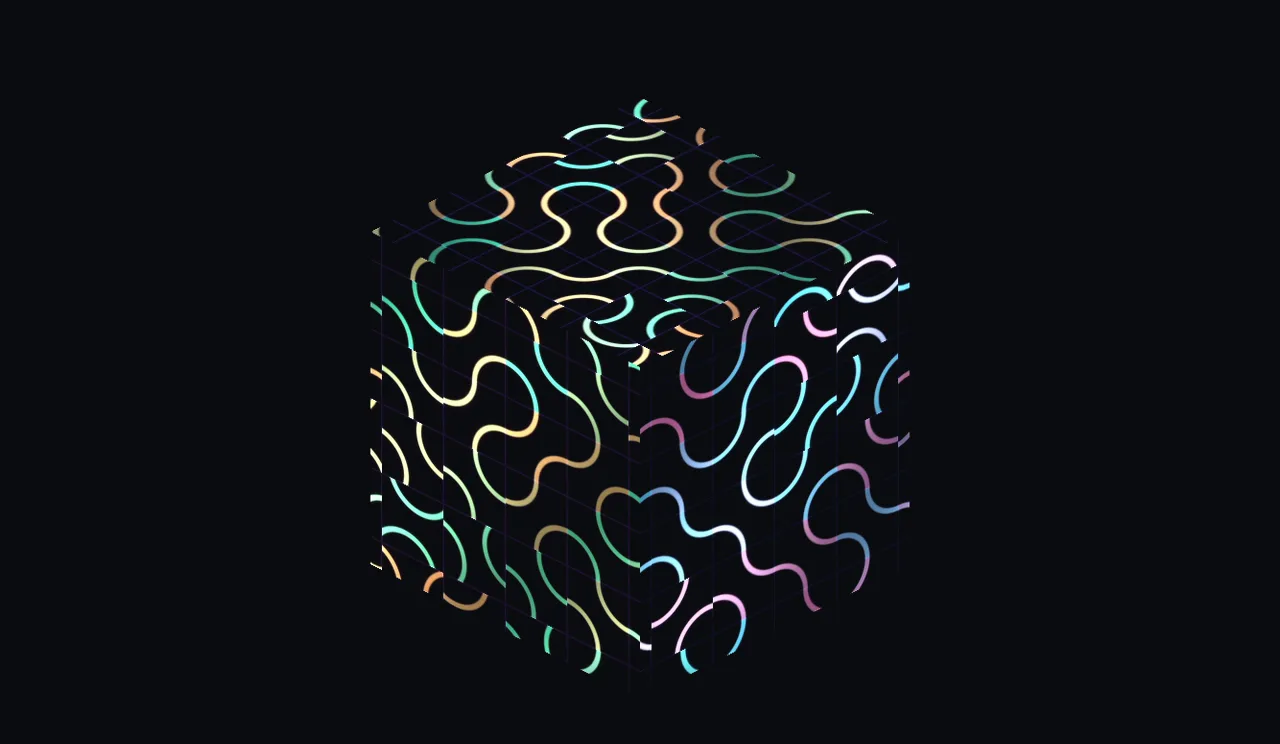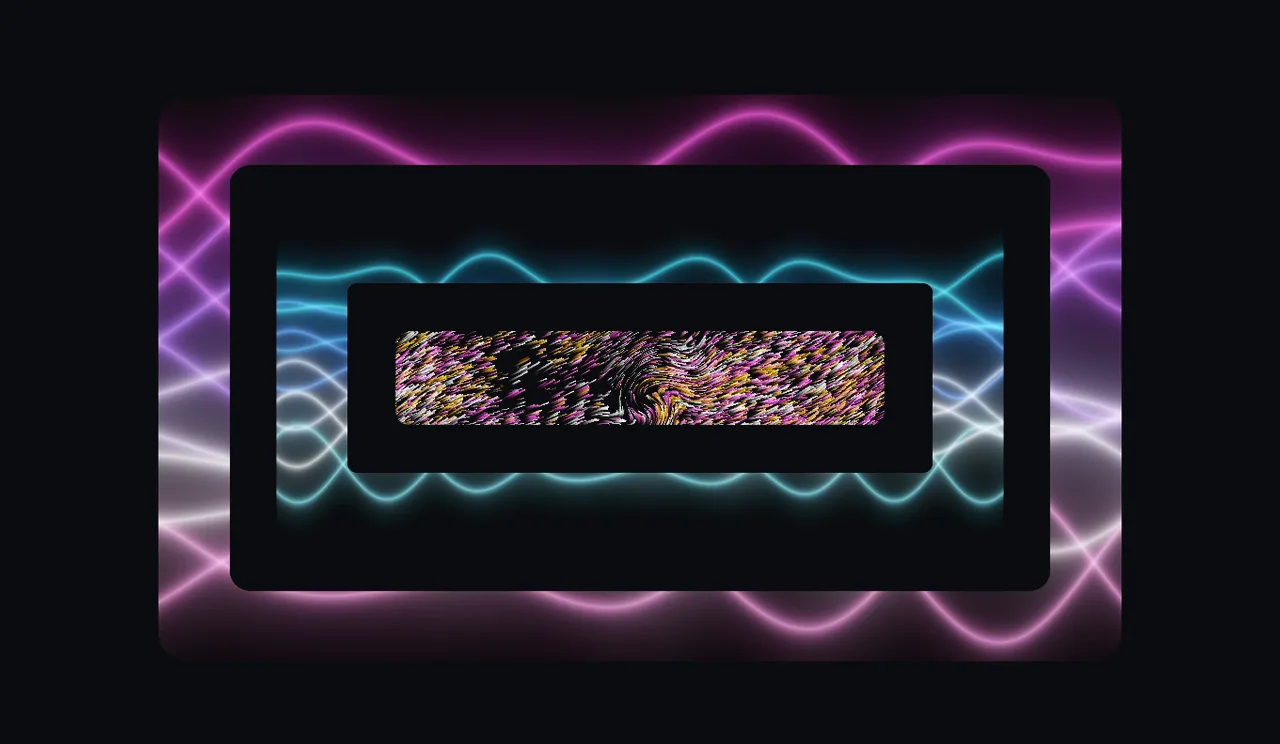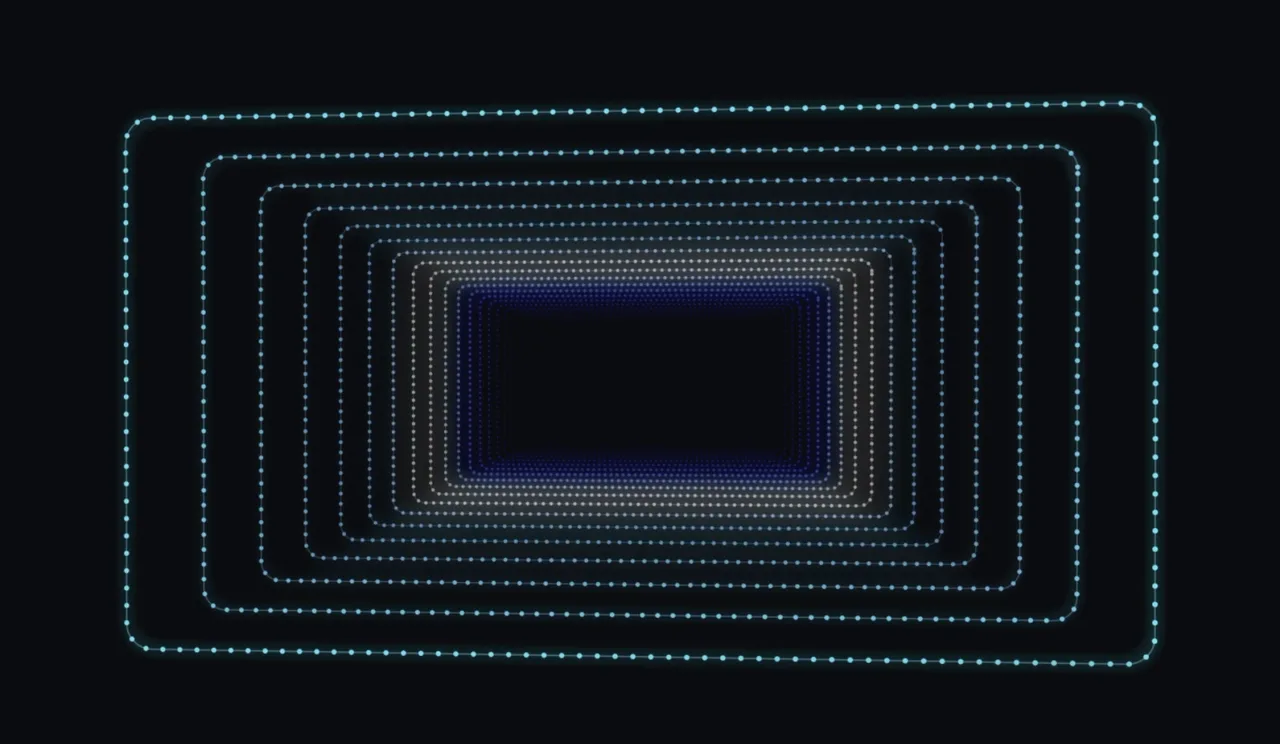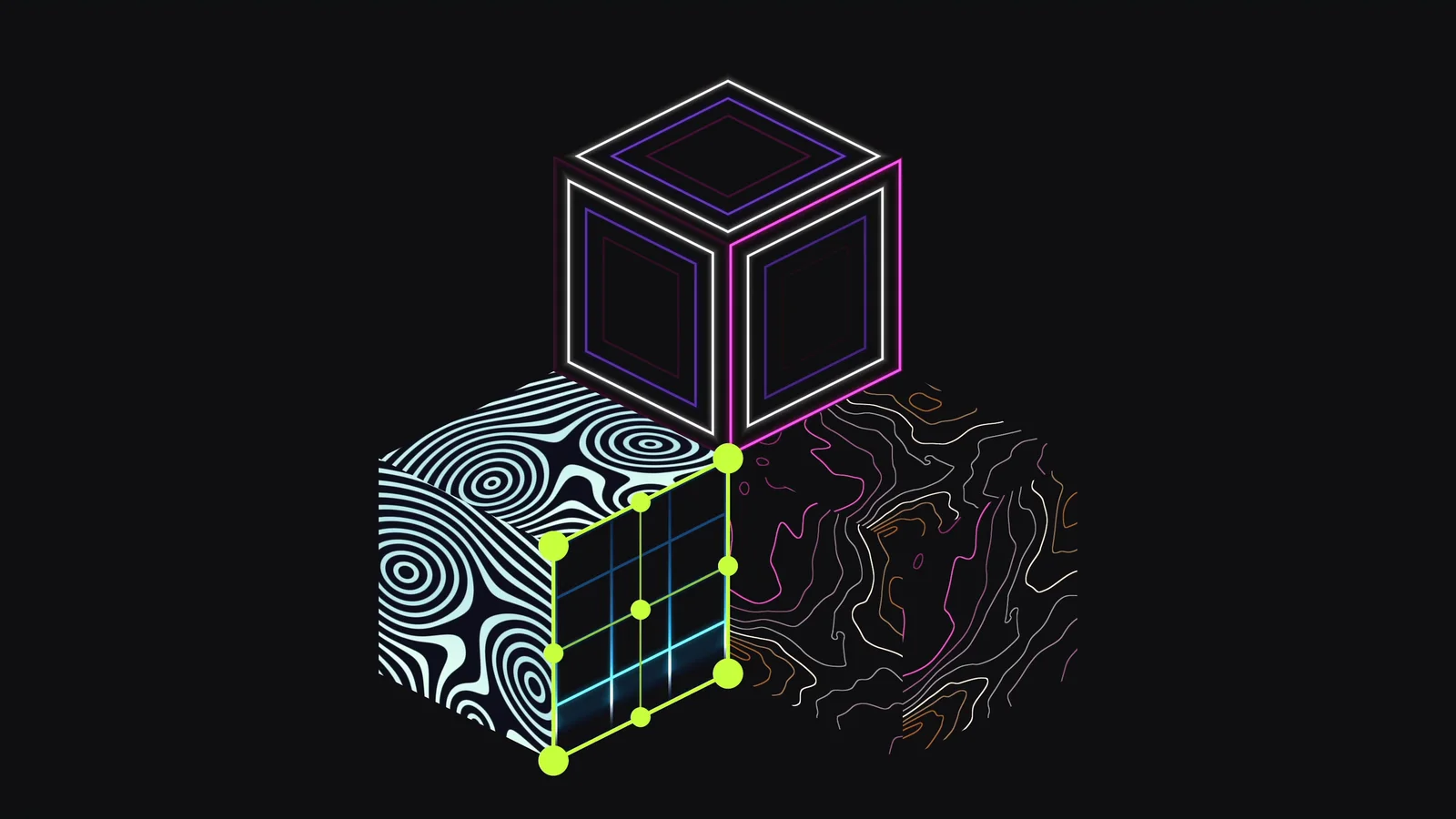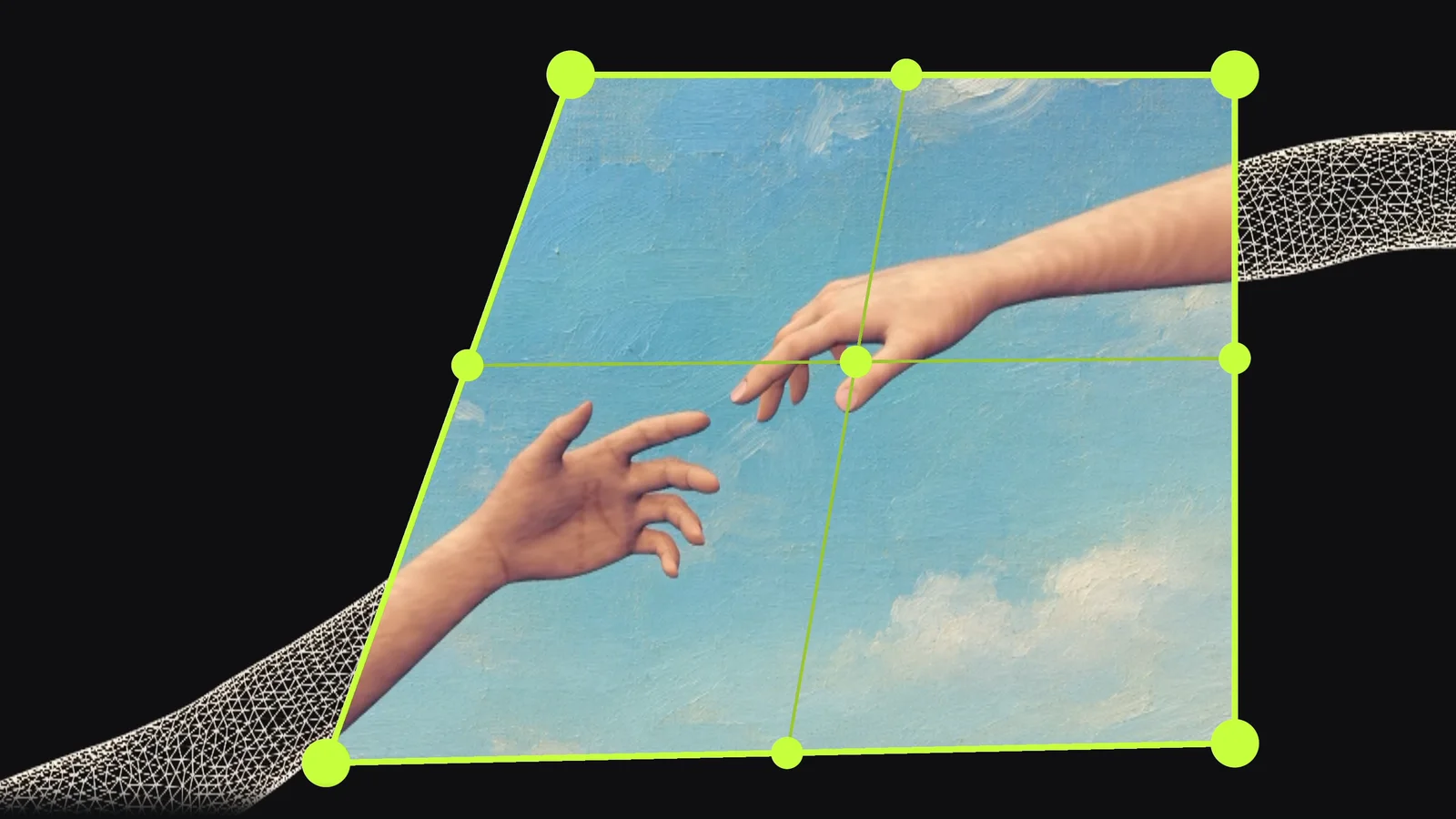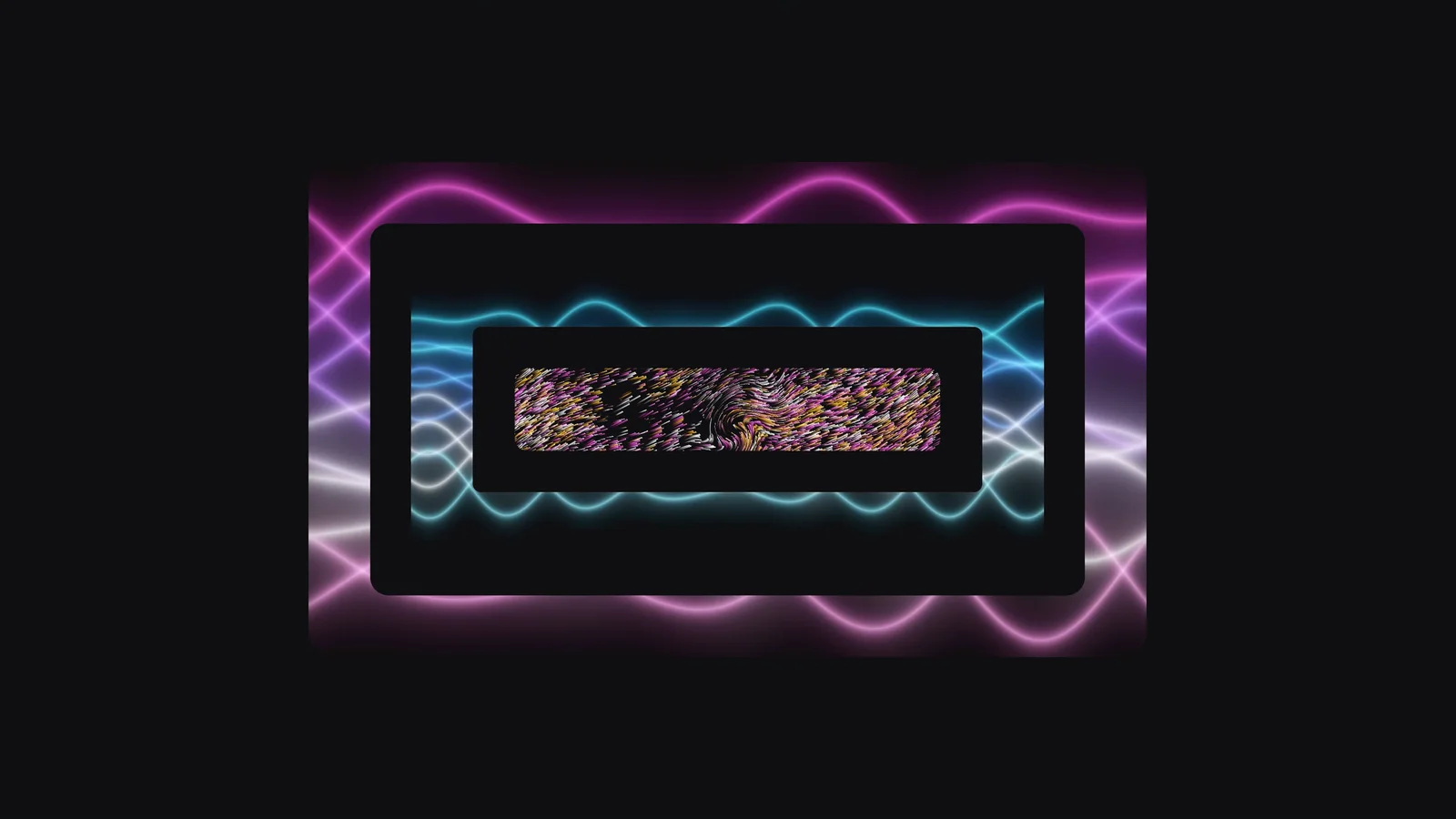
A film of SoloLight at work: pictures and moving light fitted to flat shapes and stacked cubes on a dark wall

Projection mapping app for iPhone Paint your wall with light.

SoloLight turns your iPhone and any projector into a projection mapping studio. Fit light to the real shape of a wall, a frame, a shelf or a stack of boxes — then fill it with visuals that move. No computer needed.

iPhone · iOS 18 or later · Free with one show

How it works

From your phone to the wall in three steps

  1. Connect

    Plug your iPhone into the projector with an HDMI adapter, or send the picture over AirPlay. No computer, no extra box.

  2. Fit

    Drag four corners until the picture sits exactly on the thing in front of you. Add mesh points to bend it round a column or a curve.

  3. Fill

    Choose what it shows: more than 150 moving visuals, your own photos and videos, particles, or the camera, live.

What you see on the phone is what is on the wall, as you move it.

Features

Everything you need to light a room

Shape

Fit light to anything

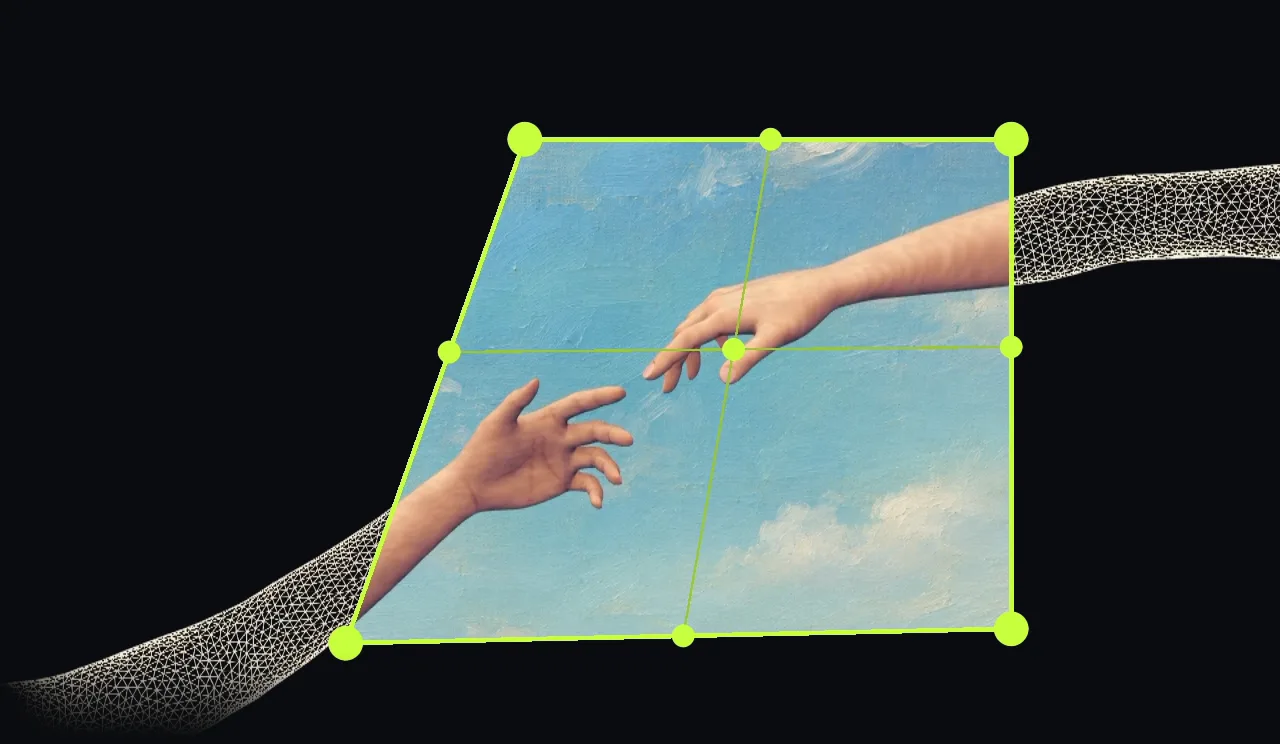
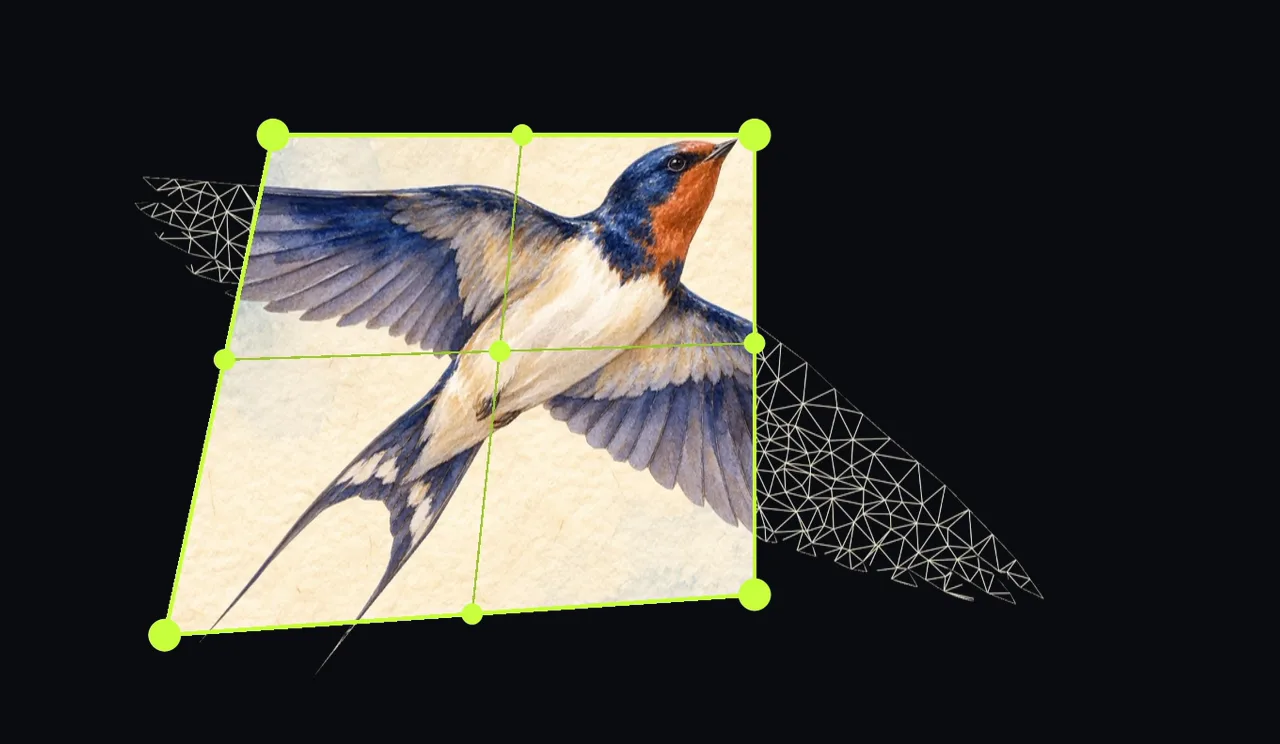
Pin each object by its four corners, with true perspective. Then bend the picture until it follows the real thing.

  • Mesh points from 2 × 2 up to 12 × 12, for columns, cloth and curves
  • Circles, triangles, hexagons, stars, arches — or trace your own outline
  • Masks keep light off what should stay dark
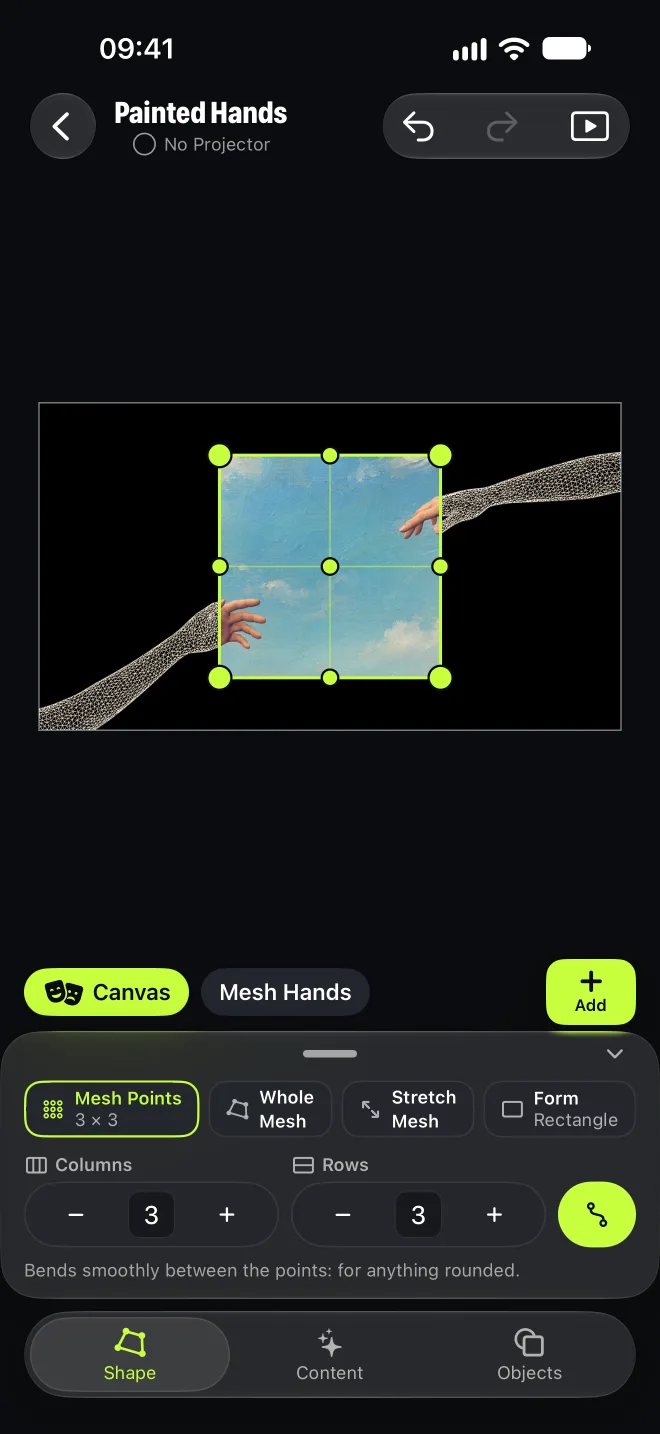
SoloLight's editor: a picture of two hands pinned to a canvas by a mesh with lime points

Visuals

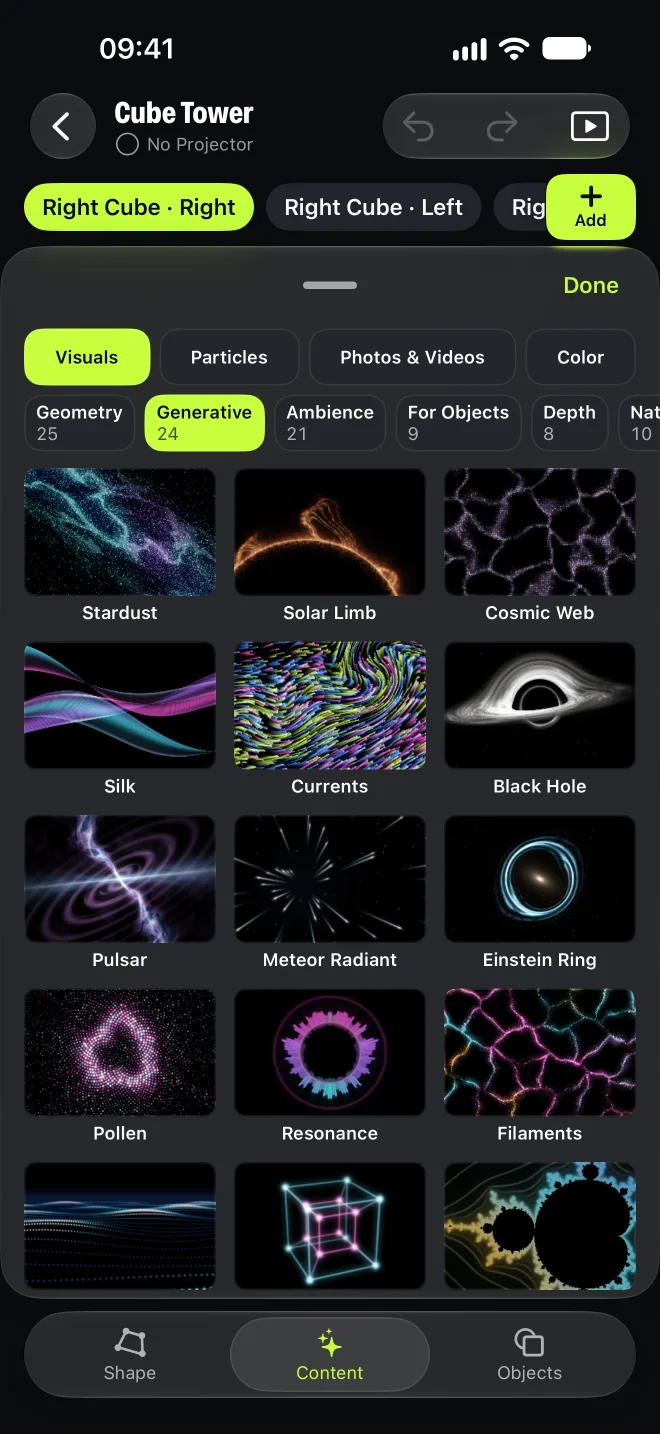
More than 150 moving visuals

Auroras, galaxies, fire, water, fractals, neon and geometry, all drawn live — each with its own speed, size, intensity and colors.

  • Generative light on black, made for dark rooms
  • Nothing to download, nothing to render
  • Every object can have its own
SoloLight's visuals list: moving generative light on black, each with its own settings

Examples

Start from an example

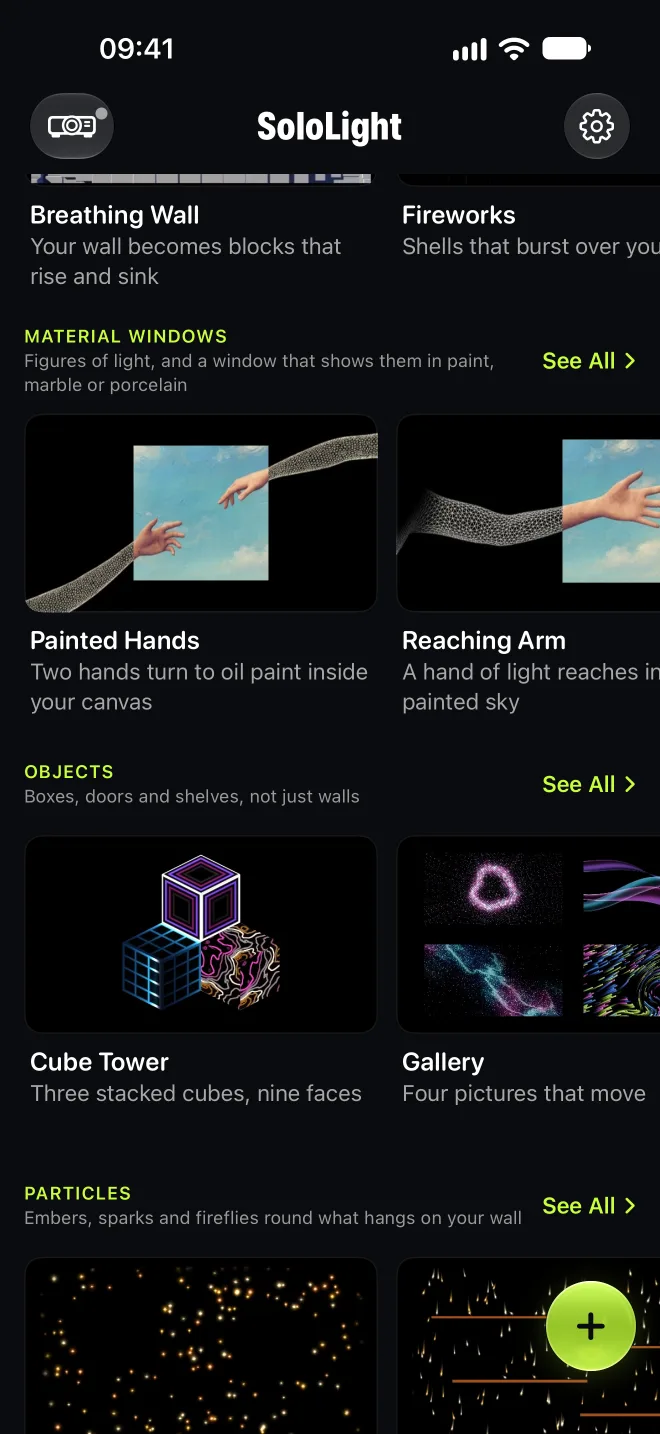
More than 80 ready-made shows for walls, picture frames, shelves, cubes and parties. Try one on your wall in a tap, then make it yours.

  • A wall of blocks that moves, an infinity mirror, pool light
  • Sparks, embers and fireworks
  • A dance floor and a mirror ball
SoloLight's home screen: a list of ready-made example shows built from objects

Your media

Your photos, your videos, your camera

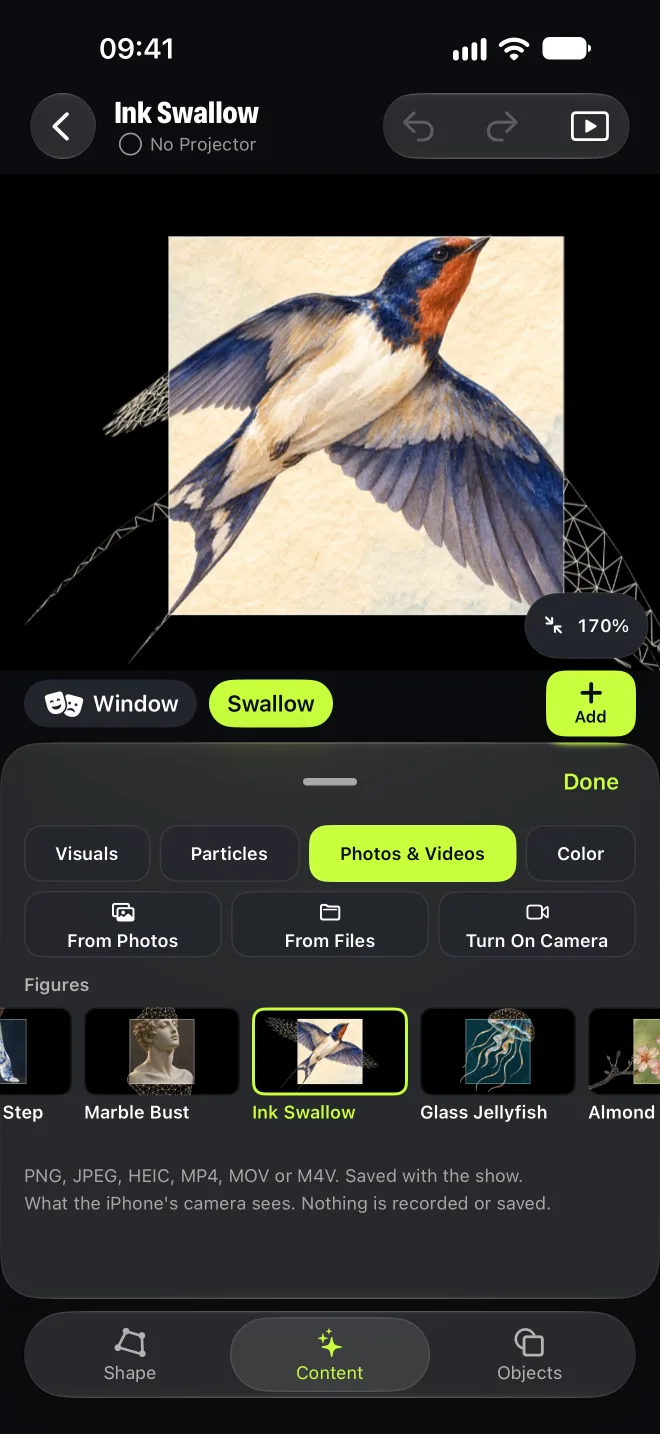
Put your own pictures and clips on any object, or spread one video across several. The iPhone's camera can go on the wall live.

  • Photos and videos from your library or Files
  • One video across several objects
  • Everything stays on your iPhone
SoloLight's editor with a photo placed on an object, a swallow drawn in ink

Particles

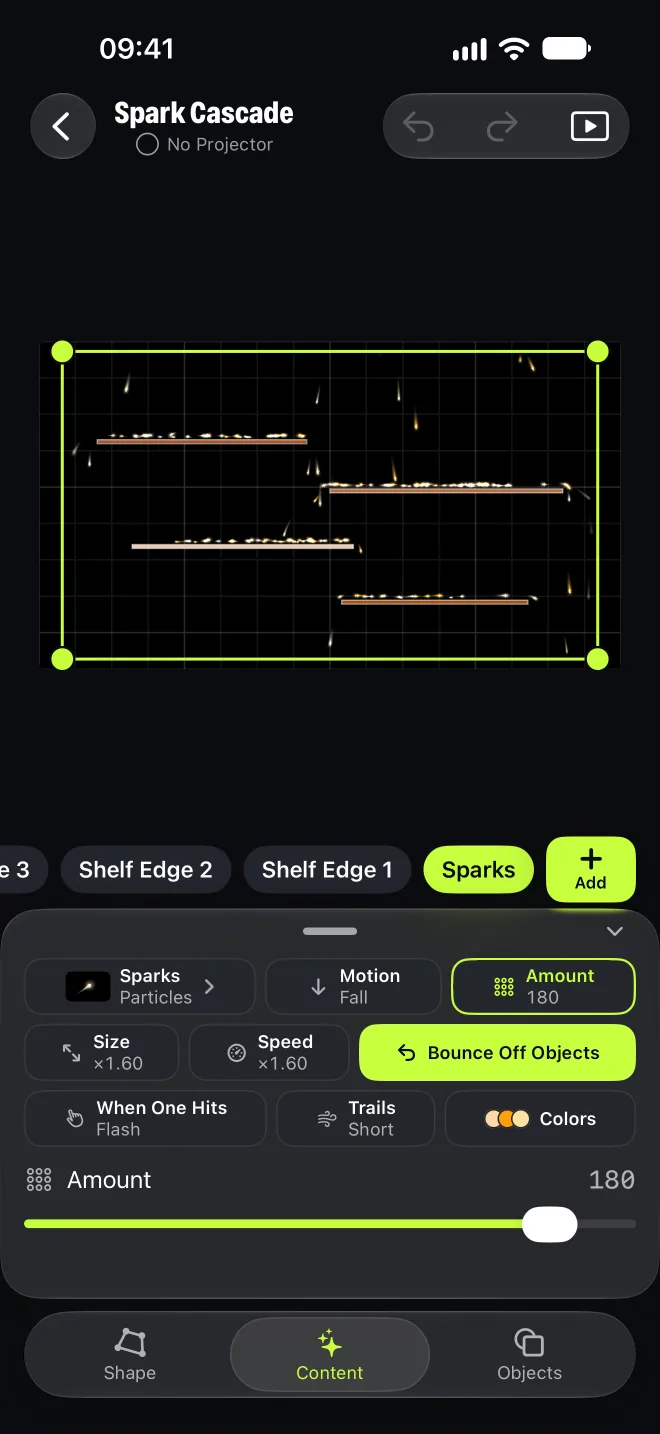
Particles that bounce off your objects

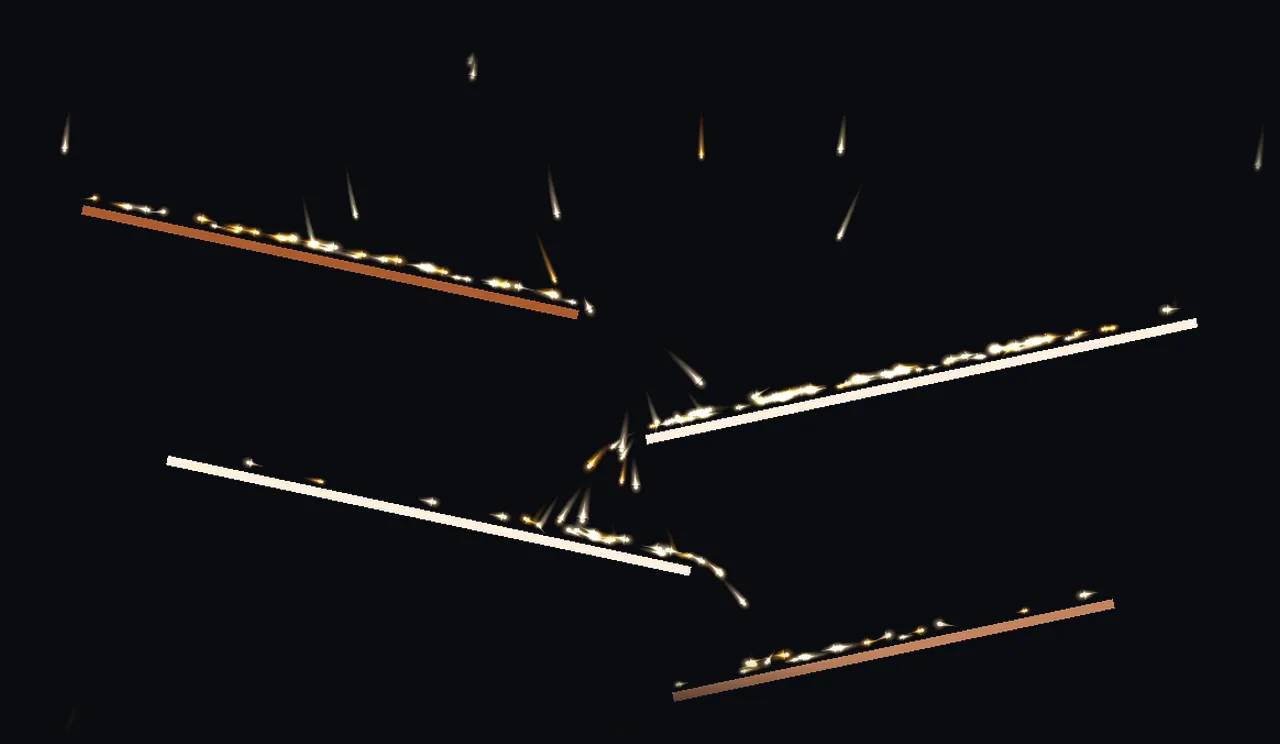
Sparks, embers and bubbles fly across the wall, land on your shelves and frames, and light them up.

  • Flick to throw them across the wall
  • Emoji and your own pictures too
  • They know where your objects are
SoloLight's editor with a cascade of sparks falling onto objects

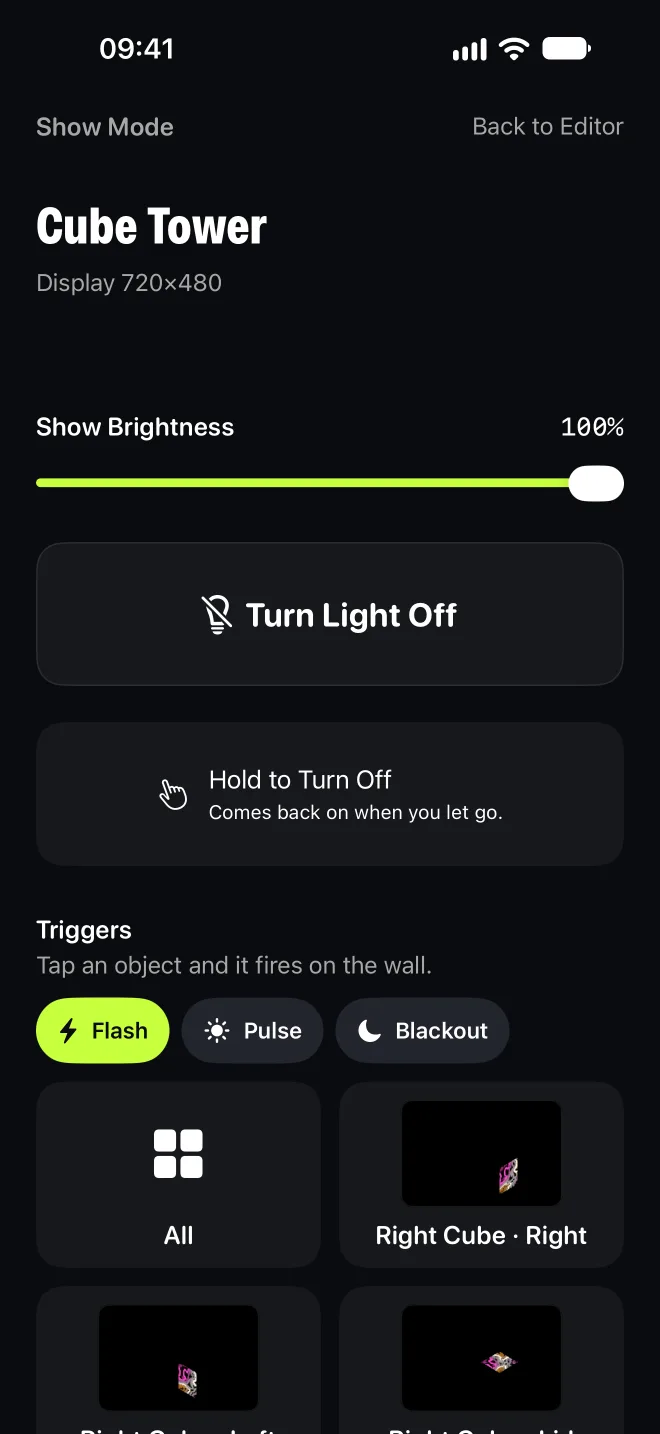
Show Mode

Run the show in the dark

When the room goes dark, the editor gets out of the way: brightness, lights off, and a lock so nothing moves by accident.

  • Tap an object to make it flash or pulse
  • Hold to black out the wall
  • Undo and redo everything
SoloLight's Show Mode: the controls that stay when the room is dark

Where people use it

One projector, a lot of evenings

What you need

An iPhone and a projector. That is all.

With a cable

The most precise. An HDMI adapter or a USB-C to HDMI cable from your iPhone to the projector. No Wi-Fi needed.

With AirPlay

No cable. Your iPhone and the projector on the same Wi-Fi, and Screen Mirroring.

Any projector with an HDMI input or AirPlay works, from a pocket projector to a hall one. iPhone with iOS 18 or later.

Free and Pro

Free with one show

Free

SoloLight

One show, and everything a show can hold: every tool, the visuals, particles, your photos and videos, the camera.

Pro

SoloLight Pro

  • As many shows as you like
  • No SoloLight mark on the wall
  • The Pro examples and figures

By the week, with three days free, by the year, or once for good. Prices are shown in the app before you buy.

Questions

Before you plug it in

What is projection mapping?

It is fitting projected light to the real shape of things — a wall, a frame, a box — instead of throwing a rectangle at a screen. The projector becomes a brush that only paints what you choose. Read the full guide

Do I need a computer?

No. The iPhone does the mapping and draws the visuals; the projector only shows them.

Which projectors work?

Any projector or screen with an HDMI input, using a video adapter for your iPhone, or with AirPlay.

Cable or AirPlay?

A cable responds faster and is the most precise when you fit a mesh. AirPlay needs no cable, and the picture arrives a little late.

Can I use my own photos and videos?

Yes, on any object, and one video can be spread across several. They stay on your iPhone.

Is SoloLight free?

It is free with one show and everything a show can hold. SoloLight Pro adds more shows, takes the SoloLight mark off the wall and opens the Pro examples.

Does it need a dark room?

Projected light always looks best in the dark. In a lit room it still works, with less contrast.

Does it work on iPad?

SoloLight is made for iPhone, with iOS 18 or later.

Learn

New to projection mapping?

All guides

Try it on your wall tonight.

Free with one show. No computer needed.

Download on the App Store